


If you’re trying to figure out HOW TO CREATE A SHAREPOINT SITE, you’re not the only one. Most teams hit that stage where juggling files, emails, and updates becomes a bit too much. That’s where SharePoint steps in; it’s like a digital home base for your team. You can store files, post news, track tasks, and keep everyone connected without the endless back-and-forth.
The best part? You don’t have to be a tech wizard to get started. Creating a SharePoint site is actually pretty straightforward once you understand what it does. It’s part of Microsoft 365, so it ties nicely with tools like Teams and OneDrive. Whether you’re setting it up for a small project or your entire department, the steps are mostly the same.
This guide will walk you through everything, from choosing the right site type to launching and customizing it, so by the end, you’ll know exactly how to make a SharePoint site that works for your team.

What is SharePoint and Why It’s Essential for Teams
Let’s start with the basics: what is SharePoint?
SharePoint is a platform from Microsoft that lets teams work together in one place. Think: file sharing, news updates, calendars, task lists, and more, all under one roof. It’s part of Microsoft 365, so it works with Teams, OneDrive, Outlook, and other tools you might already be using.
If you’ve heard people talk about “SharePoint for business collaboration,” that’s what they mean, it keeps everything connected and easy to access.
SharePoint Site Meaning
A SharePoint site is just a website where your team can share and manage content. It could be for a department, a project, or a company-wide intranet.
Why Use SharePoint?
- Better collaboration: Everyone works from the same spot.
- No more email chaos: Stop sending attachments back and forth.
- Access control: You decide who can see or edit what.
- Works with Microsoft 365: All your tools in sync.
Basically, it helps teams stay on the same page, literally.
Before You Begin — Choose the Right Type of SharePoint Site
Before you hit “create,” you’ll need to choose between the two main SharePoint site types:
SharePoint Team Site
This is great when your team is working on things together, like a shared workspace. Everyone can upload files, track tasks, or update info. It’s made for group collaboration.
Communication Site
This one’s more for sharing info to people instead of with them. Use it to post announcements, publish news, or create a clean-looking internal site that many people can view, but only a few can update.
Team Site vs Communication Site: Which is better?
It depends on what you’re doing. If it’s back-and-forth teamwork, go with a sharepoint team site. If it’s more about broadcasting updates or info, a communication site is the way to go.
SharePoint benefits
- Central hub for documents and updates
- Controlled access
- Consistent design and structure
- Grows with your team
So pick wisely. Getting it right at the start saves time later.
How to Create a SharePoint Site — Step-by-Step (Visual Guide)
Here’s where we get into the real steps on how to create SharePoint site pages and get your site up and running. Here’s a simple list to walk through.
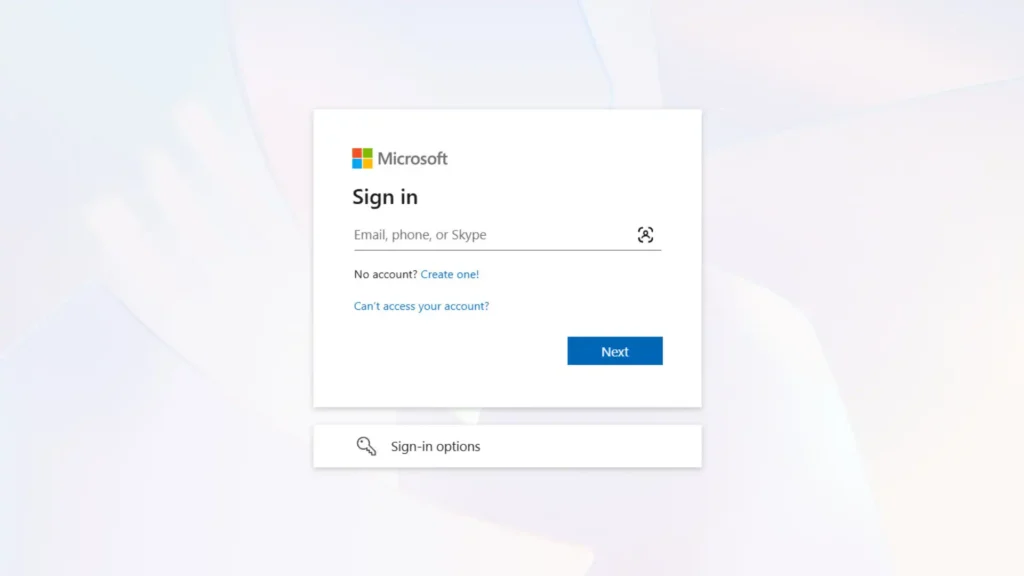
Step 1: Log In
Go to office.com and sign in with your Microsoft 365 account.

Step 2: Open SharePoint
Click the SharePoint app from your dashboard.
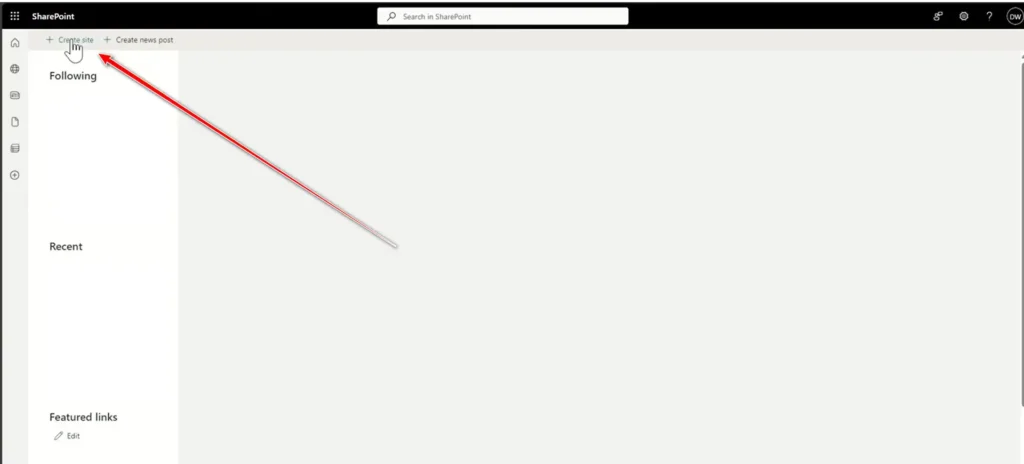
Step 3: Click “Create site”
Big button, hard to miss. Click it.
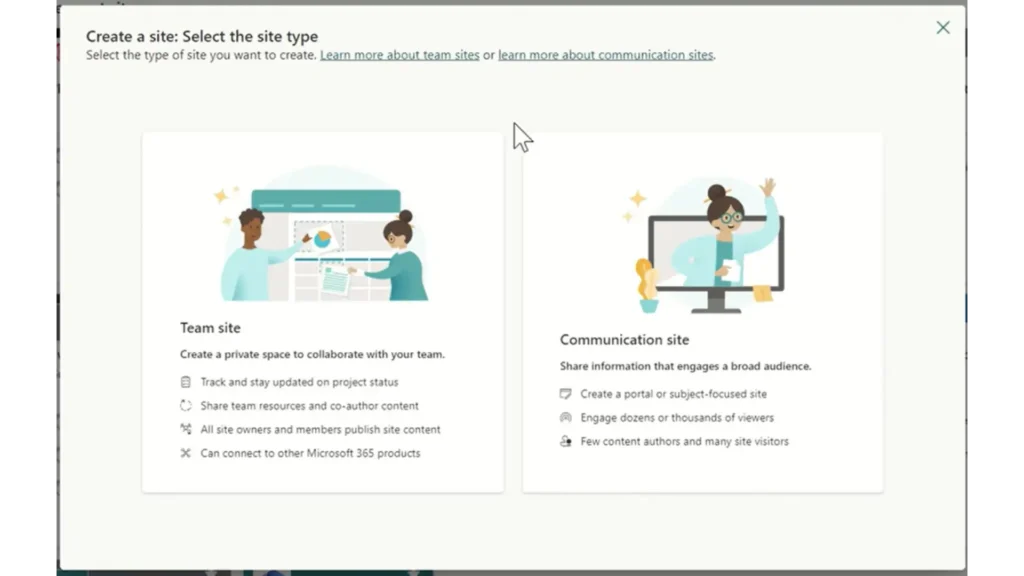
Step 4: Choose your site type
Pick either a Team Site or a Communication Site depending on your needs.
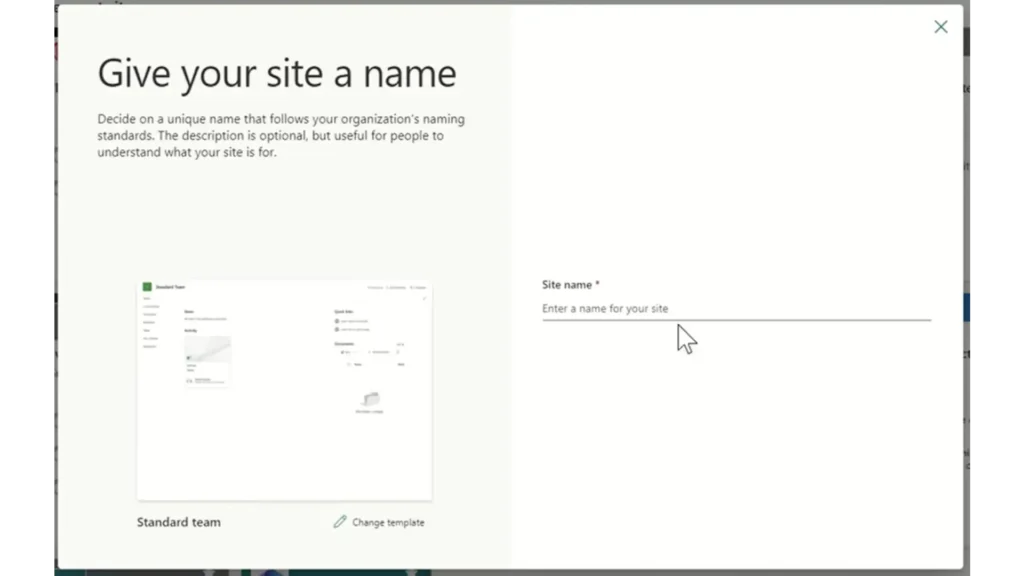
Step 5: Name your site
Give it a clear name your team will understand. It’ll also be part of the site URL.
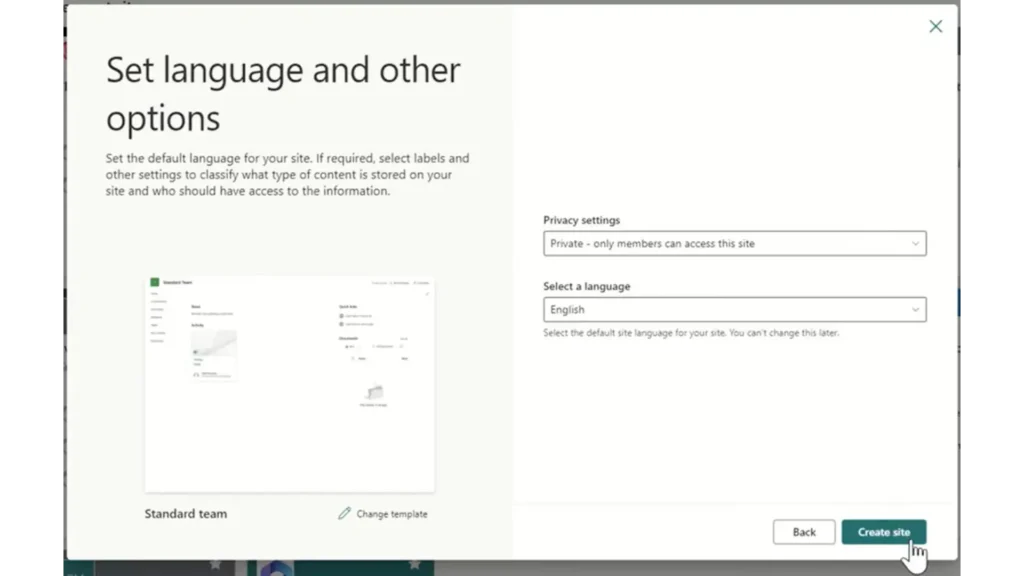
Step 6: Set your privacy
For team sites, choose if it’s public (anyone in your org can join) or private (only invited people).

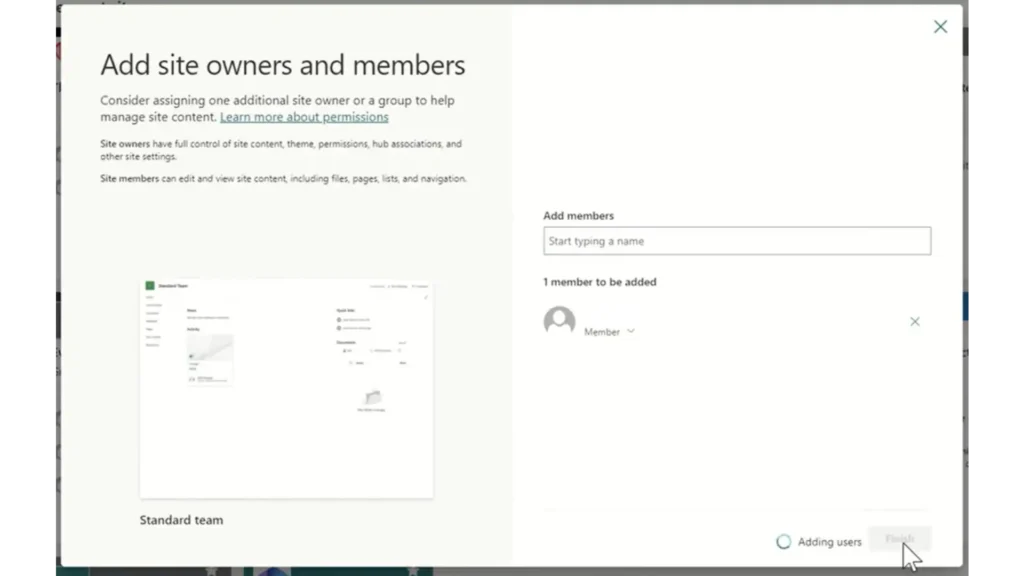
Step 7: Add owners and members
You can enter names or emails now, or skip and add them later.
Step 8: Confirm details
Double-check the name, URL, and settings, then hit Create.
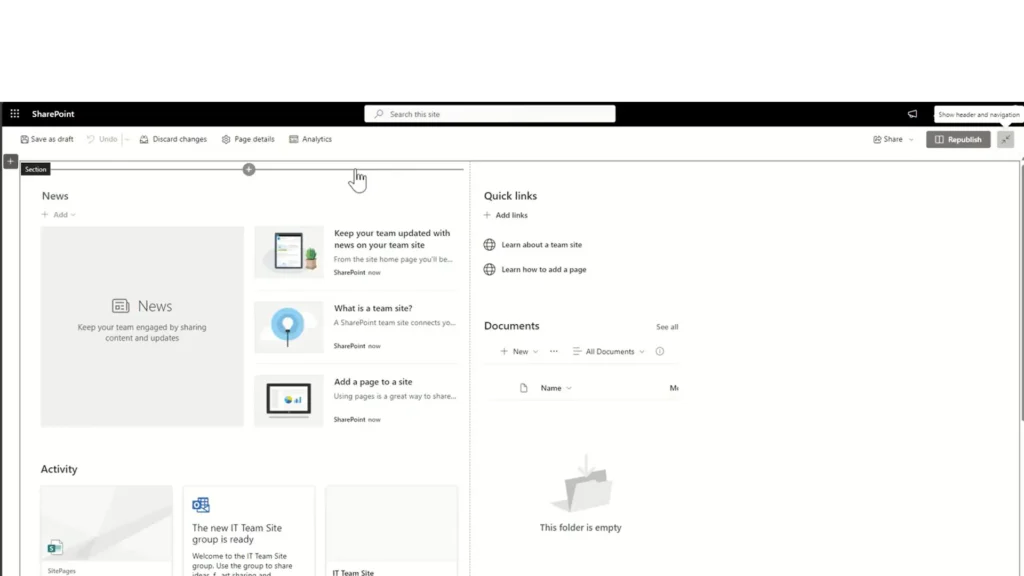
Step 9: Start building
Now you can build SharePoint site features: add pages, upload files, edit the homepage.
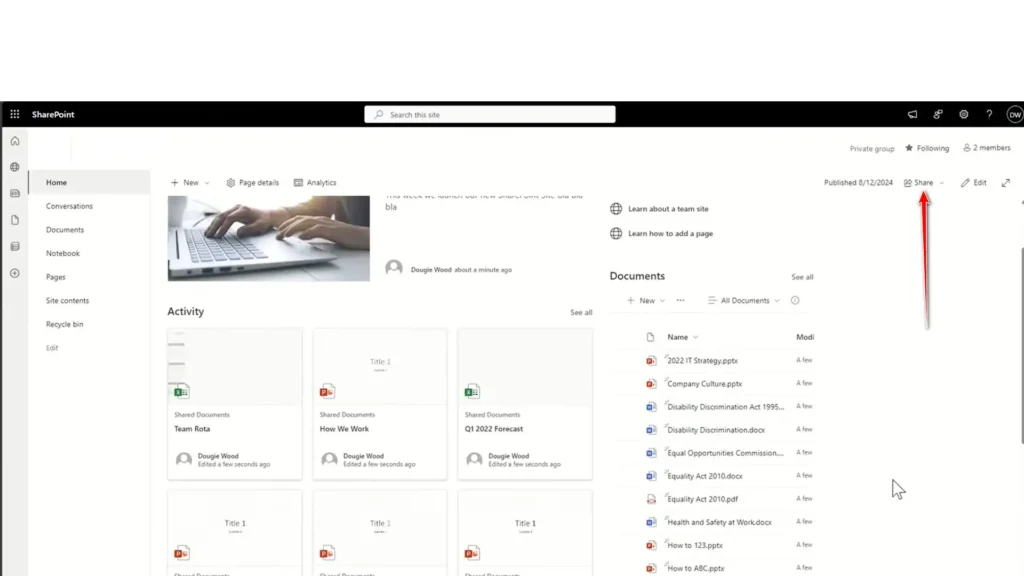
Step 10: Share the link
Once it looks good, send the link to your team and start using it.
Done. You’ve got a working SharePoint site.
How to Customize a SharePoint Site (Design, Branding, and Permissions)
Let’s be honest, the default SharePoint site is kind of plain. But you can fix that.
SharePoint site design tips:
- Change the theme and logo so it looks more like your brand.
- Update the homepage layout with sections like Quick Links, News, or Documents.
- Add web parts to show calendars, videos, lists, whatever your team needs.
Navigation
Keep it clean. Don’t overload the menu. Start with a few key links and grow from there.
Permissions
This matters more than people think.
- For Team Sites, use the built-in groups (Owners, Members, Visitors).
- For Communication Sites, keep editing access to just a few people.
Getting your SharePoint site permissions right from the start avoids a lot of confusion later on.
Common Mistakes to Avoid When Creating a SharePoint Site
- Wrong privacy settings:
Too many people make their site public by accident. If it’s meant for a small group, make sure it’s private. - Overcomplicated navigation:
Too many links or pages just makes it harder to use. Keep it simple at first. - Ignoring permission hierarchy:
Don’t get fancy with item-level permissions unless you have to. Stick with simple group roles to keep things manageable.
And if you plan to customize SharePoint site settings too deeply without a plan, you’ll likely regret it later.
Frequently Asked Questions
Q1: Can I change from a Team Site to a Communication Site later?
Q2: Do I need a separate site for every team?
Q3: Does every Microsoft Team come with a SharePoint site?
Q4: Can I limit who sees certain documents?
Q5: Are there templates I can use?
Q6: Can I fix things if I mess up?
Q7: Where can I learn more about Microsoft 365 and SharePoint?
Conclusion
So now you know how to create a sharepoint site, from choosing the right type to building it, making it your own, and steering clear of common mistakes. The process isn’t overly technical, but it does require a bit of planning and attention to detail. Getting it right the first time saves you time later and sets your team up for success.
The key is to start small. Don’t overthink the layout or pile on features you don’t need yet. Just create something that works, and then build on it over time. You can always tweak the design, add new pages, or adjust permissions as your needs change. That’s the beauty of SharePoint, it grows with you.
Most importantly, remember that SharePoint is a tool meant to make collaboration easier, not more complicated.
And hey, if improving teamwork and communication is on your radar, here’s something worth checking out: Use Phones More Effectively. Sometimes small shifts make a big difference.
Author

Jay S. Allen, MCP, MCSA, MCSE, MCSE+ Security, is an experienced IT professional with more than 20 years in the industry. He specializes in delivering enterprise-level cybersecurity and IT support solutions tailored to small and mid-sized businesses. Through Techno Advantage, Jay is dedicated to helping organizations strengthen their security posture and achieve greater efficiency through smart, scalable technology solutions.